
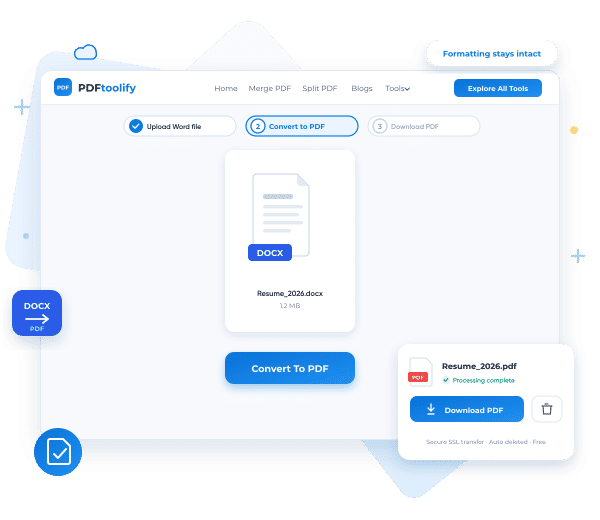
How to Save a Word Document as a PDF (3 Easy Ways)
To save a Word document as a PDF, open the file in Word, go to File → Save As, choose PDF as the file type, and click Save.
If you don't have Word, you can also convert the file online for free in a few seconds.
Below are the Three ways to save the word document as a PDF
Why Save a Word Document as a PDF?
A Word file can look different depending on the device, the Word version, and the fonts installed. A PDF fixes this.
Here is why most people convert:
- Formatting stays the same. Fonts, images, and spacing look identical on any phone, tablet, or computer, even without Word.
- It is harder to change by accident. A PDF is meant for reading and sharing, not editing.
- It is often required. Job applications, college forms, government portals, and many clients ask for PDF files.
- It is easy to email and print. Almost every device can open a PDF.
Method 1: Save as PDF in Microsoft Word (Windows)
This is the best option if you already have Word, because you get the most control over the result.
- Open your document in Microsoft Word.
- Click File, then Save As.
- Choose the folder where you want to save the file.
- In the Save as type list, select PDF.
- Choose Standard (publishing online and printing) for the best quality, or Minimum size (publishing online) for a smaller file.
- Optional: click Options to pick a page range or to create bookmarks from your headings.
- Click Save.
Method 2: Save as PDF in Microsoft Word (Mac)
- Open your document in Word for Mac.
- Click File, then Save As.
- Next to File Format, choose PDF.
- Choose a name and location, then click Save (or Export, depending on your version).
Method 3: Convert Word to PDF Online with PDFtoolify
If you don't have Word, you are on a shared computer, or you just want a quick conversion, an online converter is the fastest option.
You only need a browser.
1.Open the PDFtoolify Word to PDF Converter
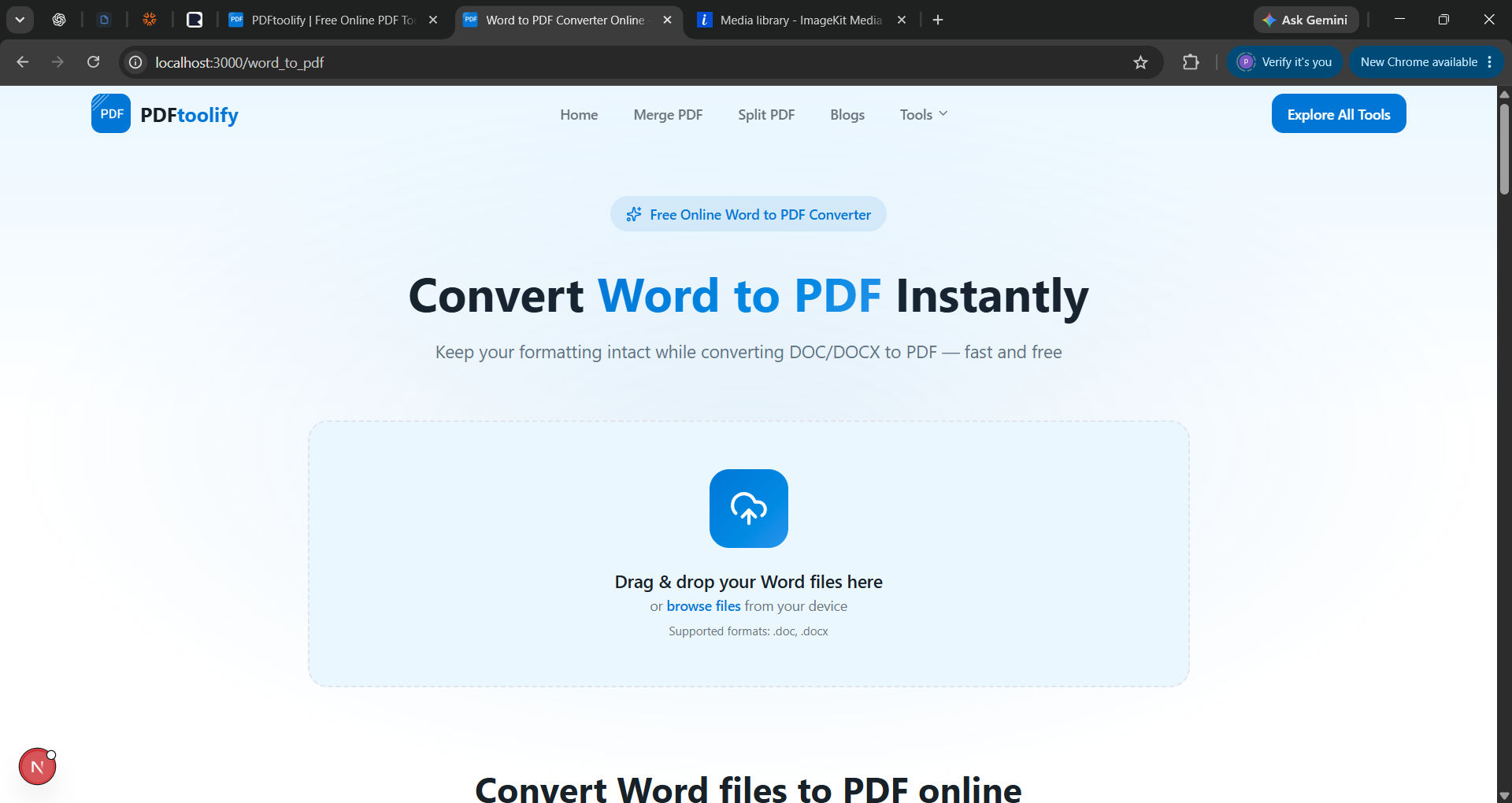
2. Drag and drop your Word file, or click browse files to pick it from your device. Both .doc and .docx files work.
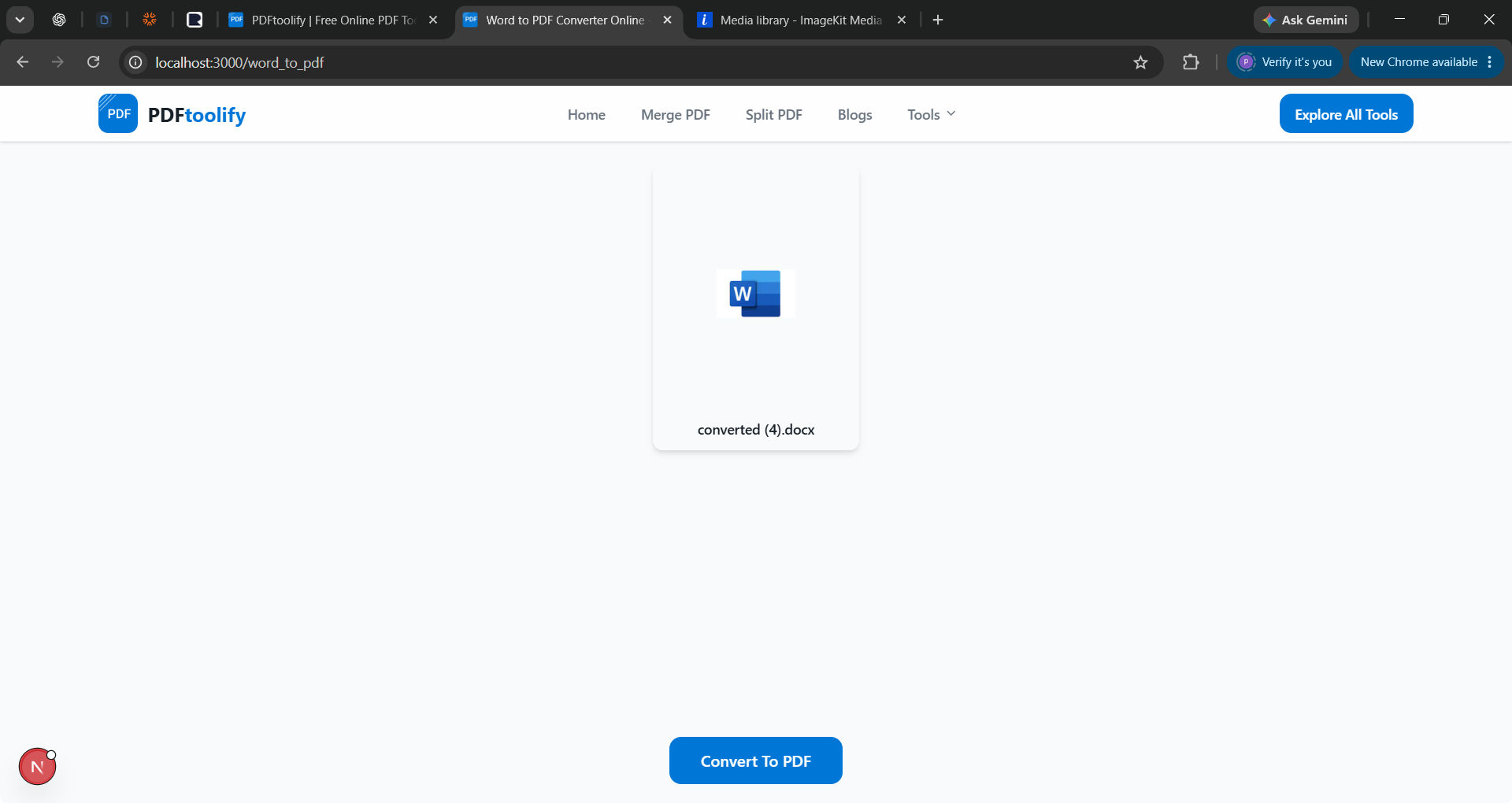
3. Click Convert To PDF.
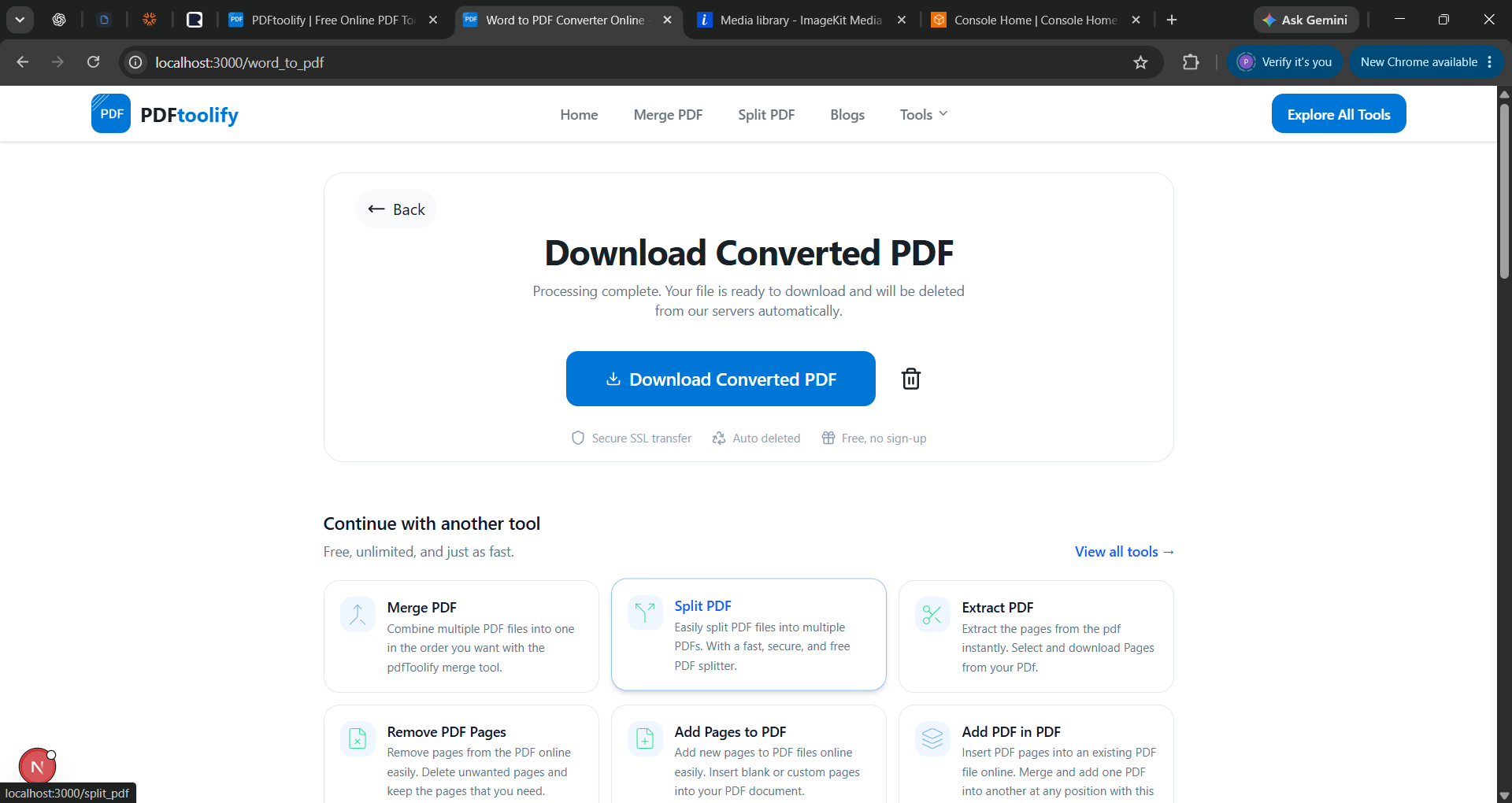
4. When processing is complete, click Download Converted PDF.
|
Method |
Best for |
Needs software? |
Notes |
|---|---|---|---|
|
Word on Windows |
Everyday use and full control |
Yes, Microsoft Word |
Lets you choose quality, page range, and bookmarks |
|
Word on Mac |
Everyday use |
Yes |
Lets you choose quality, page, range, an bookmark |
|
PDFtoolify Word to PDF |
Quick conversion on any device |
No, only a browser |
Free, no sign-up |