

To add a watermark to a PDF, upload the file to a PDF watermark tool, type your watermark text or choose an image, adjust the position and transparency, and download the new file. With PDFtoolify this takes less than a minute and needs no software.
Below are the easiest ways to watermark a PDF, how to make the watermark look right, and what to do when something goes wrong.
What Is a PDF Watermark?
A watermark is text or an image placed on the pages of a document, usually faded so the content underneath stays readable. Common examples are “CONFIDENTIAL”, “DRAFT”, a company logo, or a name.
Why Add a Watermark to a PDF?
- Show ownership. A logo or name on your document makes it clear who created it.
- Mark the status. Words like DRAFT, SAMPLE, or FOR REVIEW stop people from treating an unfinished file as final.
- Protect sensitive files. A “CONFIDENTIAL” mark or the recipient’s name discourages sharing.
- Discourage copying. Watermarked work is less attractive to copy and reuse without credit.
- Look professional. Branded invoices, proposals, and reports look more polished with a subtle logo.
Text Watermark vs Image Watermark
A text watermark is best for status labels and names. It is quick to create, and you can control the font size, color, and angle.
An image watermark is best for logos and stamps. Use a PNG with a transparent background so no white box appears behind your logo.
Method 1: Add a Watermark to a PDF Online with PDFtoolify
This is the fastest method and works on any device with a browser.
1.Open the PDFtoolify Watermark PDF tool.
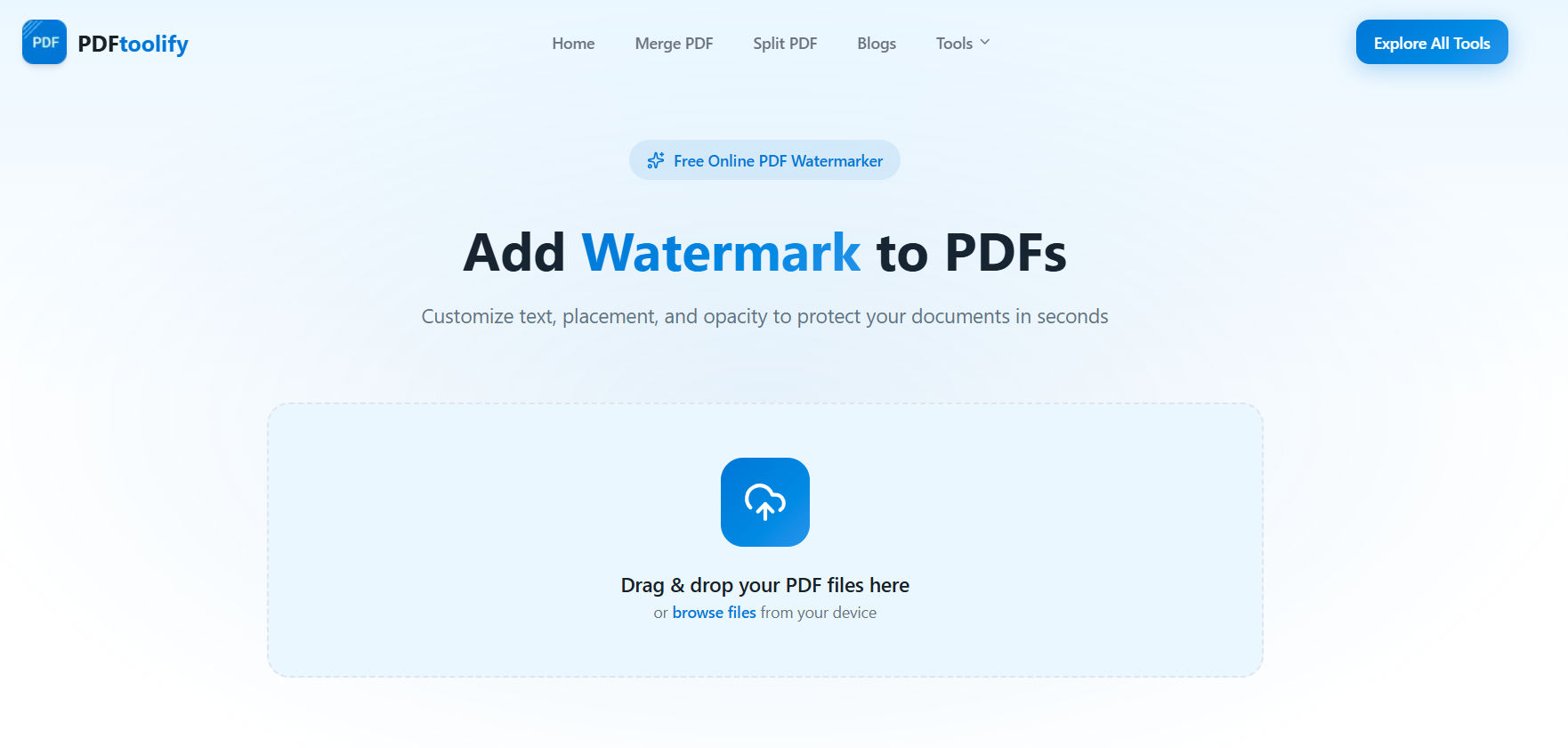
2.Click the upload area and select your PDF, or drag and drop it in.
3.Choose Text and type your watermark.
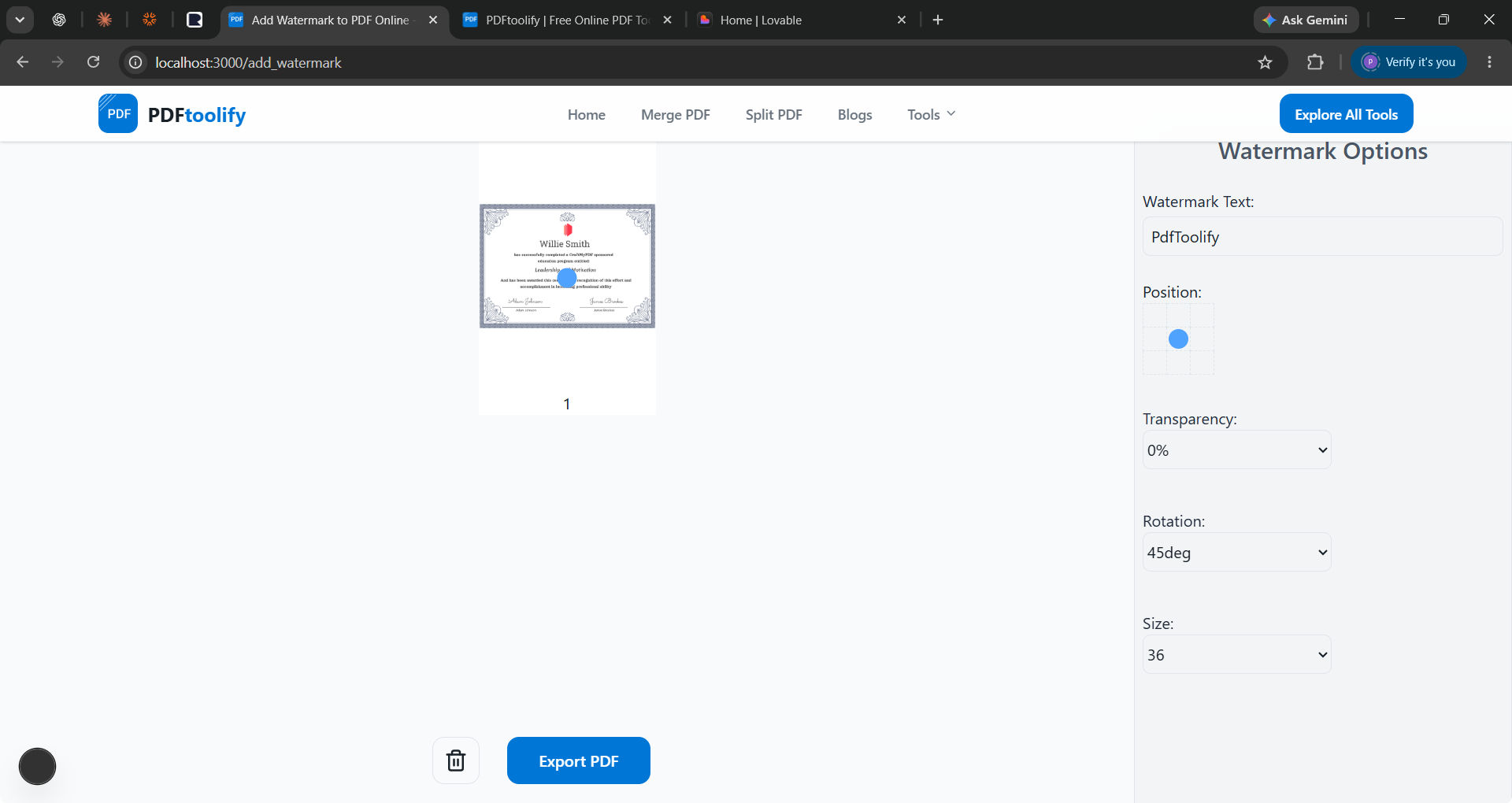
4.Set the position, size, rotation, and opacity.
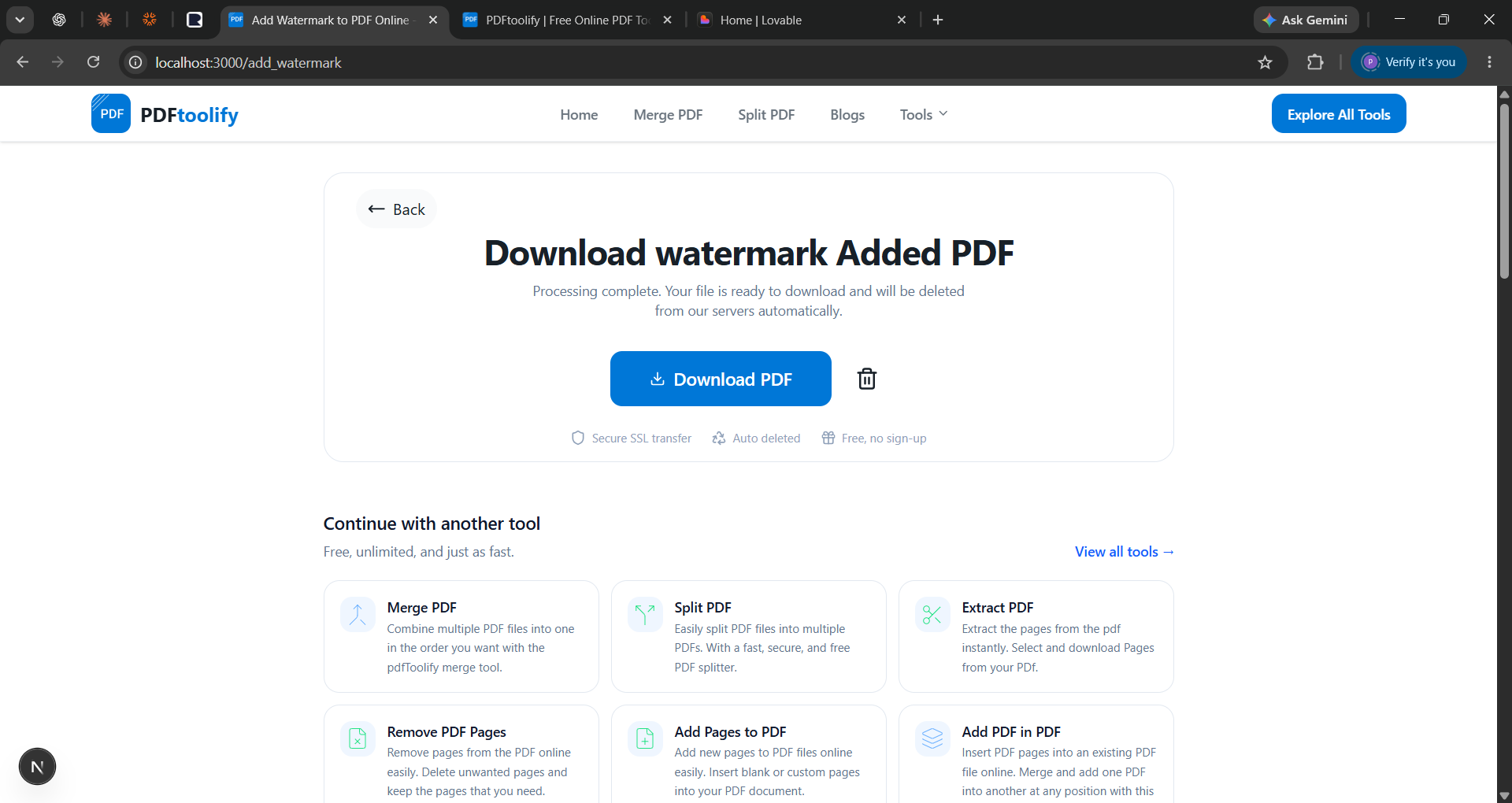
5.Click the Export button to apply the watermark.
6.Click Download to save your new PDF.
Method 2: Add a Watermark in Adobe Acrobat
If you have Acrobat Pro, you can do this offline.
- Open the PDF in Acrobat.
- Go to Tools, then Edit a PDF.
- Click Watermark, then Add.
- Enter text or choose an image file.
- Set the font, opacity, position, and page range.
- Click OK, then save the file.
Acrobat gives more control over page ranges, but it is a paid product, so it is not ideal if you only need to watermark a file occasionally.
Method 3: Add a Watermark in Microsoft Word Before Converting
If your document starts as a Word file, you can add the watermark in Word and then save it as a PDF.
- Open the document in Word.
- Go to the Design tab, then click Watermark.
- Choose a preset such as CONFIDENTIAL or DRAFT, or click Custom Watermark for your own text or picture.
- Click OK.
- Go to File, then Save As, and choose PDF.
This only works if you have the original Word file. If you only have the PDF, use Method 1 or Method 2.
Can a Watermark Be Removed?
Honestly, yes. A watermark added to a normal PDF can often be removed by someone with the right software, especially if it sits in a separate layer. A watermark is a deterrent and a way to mark ownership, not a lock.
If you need stronger protection, combine it with other steps:
- Flatten the PDF so the watermark becomes part of the page content.
- Add a password so the file cannot be opened or edited without it.
- Use a different watermark for each recipient, so a leak can be traced.
- Share low-resolution versions of important files.
Common Problems and How to Fix Them
The watermark is too dark or hides the text
Lower the opacity to 20% to 30% and try again.
The watermark does not appear on all pages
Check the page range setting and make sure it is set to all pages.
The logo has a white box around it
Use a PNG with a transparent background instead of a JPG.
The file size got bigger
Large images increase file size. Use a smaller logo, or run the finished file through the Compress PDF tool.
The watermark looks blurry
Use a higher-resolution image, or switch to a text watermark.
Frequently Asked Questions
Can I add a watermark to a PDF for free?
Yes. You can use an online tool like PDFtoolify without paying, and you do not need to install anything.
Can I add an image or logo as a watermark?
Yes. Upload a PNG with a transparent background for the best result.
Can I add a watermark to a PDF on my phone?
Yes. An online watermark tool works in the browser on both Android and iPhone.
Will adding a watermark reduce the quality of my PDF?
No. The original text and images stay the same. The watermark is placed on top of them.
Conclusion
Adding a watermark to a PDF is quick: upload the file, choose text or an image, adjust the opacity and position, and download. Keep the watermark light and simple so it marks your document without making it hard to read.